Welcome
Apple II Share lets you upload, organize, share, and download files. Each user has a private root folder. Files shared by their owner can be viewed by other authenticated users.
Back to Sign inBasic workflow
Authorization
Open the login page, enter your username and password, then select Sign in.
After successful authorization, the Files list is available. The Users tab is shown only to the administrator.
Create a directory
Open Files list and select Add new directory.
Enter a directory name and select Create. The directory is created inside the current directory.
Create and upload a file
Select Add new file, choose the destination directory, select a file, and press Upload.
Files uploaded to a directory are displayed only inside that directory, not in the root list.
Browse the Files list
Folders are displayed with a folder icon and files with a file icon. Select a folder name to open it.
Use .. to return to the parent directory. The current directory is shown after the Files list title.
Share a file
The owner of a file can select Share. The file then becomes visible to all authenticated users.
Select Unshare to make it private again. Other users can view shared files but cannot share, unshare, or delete them.
Delete a file
The Delete button is available to the file owner and the administrator only.
Important notes
- Your files are stored in your own user folder.
- A shared file remains in its original directory. Other users can open the shared folder and view the file there.
- Only the administrator can manage users.
- Do not share your password or API credentials.
Real Files list example
This is the Files list after user mario has logged in. The root view shows the available directories, including shared directories owned by another user. Select a directory name to view its files.
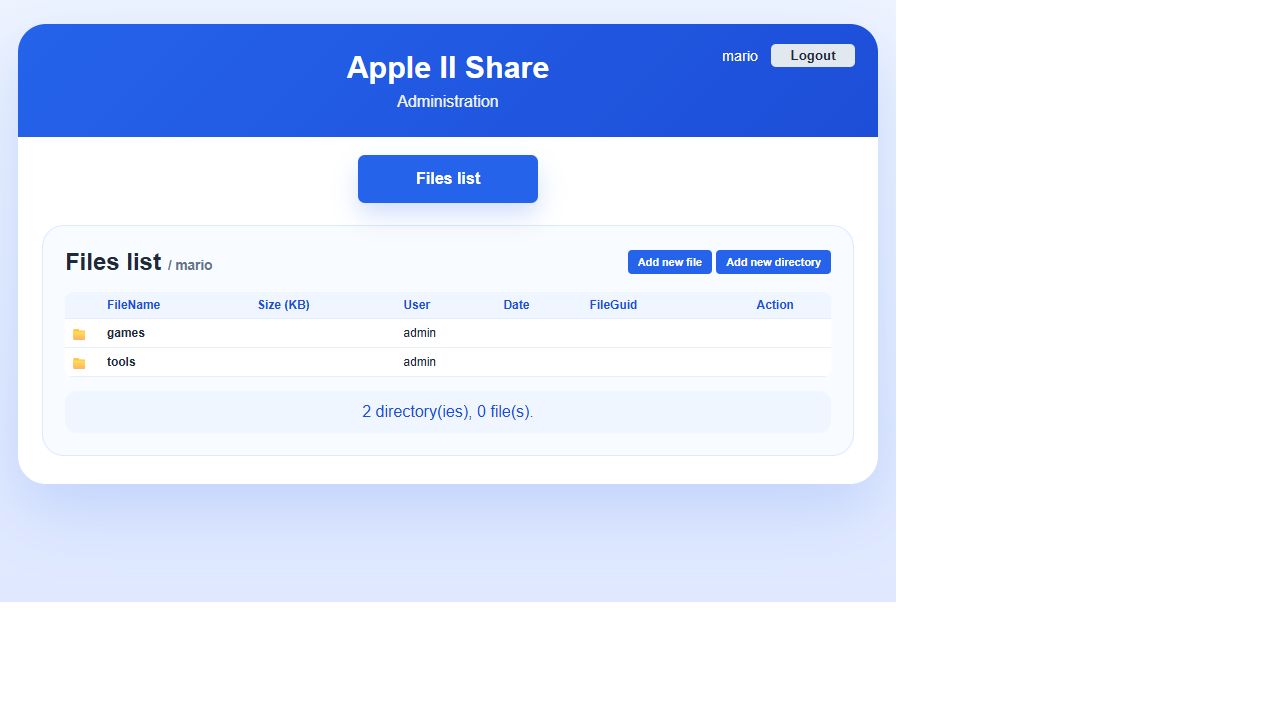
In this example, games and tools are folders owned by admin. The list contains no files at root level, because files inside these folders are displayed only after opening the corresponding folder.